Meta Tags Tools

SERP Snippet Preview

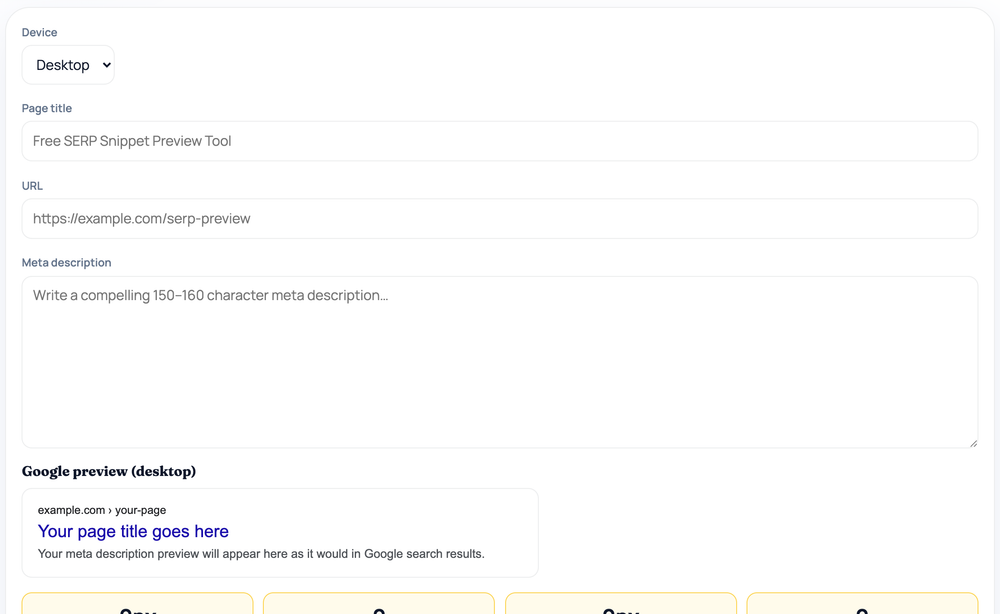
Preview how a title, URL, and meta description will look in Google results on desktop or mobile, with live pixel-width measurement so you can see exactly what gets truncated.

Meta Tags ToolsBrowser ready/serp-snippet-preview

Google preview (desktop)

example.com › your-page
Your page title goes here
Your meta description preview will appear here as it would in Google search results.
0pxTitle width / 580px max
0Title chars (30–60)
0pxDesc width / 920px max
0Desc chars (70–160)

Google truncates by pixel width, not character count — width is the number that matters.

Step by step

How to use the SERP Snippet Preview

  1. Choose Desktop or Mobile to match the layout you want to preview.
  2. Type your page title, URL, and meta description into the fields.
  3. Watch the live Google snippet render with the breadcrumb-style URL.
  4. Check the title and description pixel-width and character stats below.
How to use the SERP Snippet Preview — tool screenshot
The SERP Snippet Preview on HighSEOTools

Pro tip: Google truncates by pixel width, not characters — keep the title and description under the green px limits to avoid the trailing ellipsis.

Why pixels beat character counts

Most snippet advice quotes a character limit, but Google does not truncate by character count — it truncates by width. A title full of wide letters like W and M runs out of room sooner than one full of narrow letters like i and l, even at the same character count.

This preview measures your text the way the results page does, in pixels, so the cut-off point you see matches what Google would actually show rather than a rough character approximation. It still reports character counts alongside the pixel widths, so you get both signals at once.

How the measurement works

As you type the title, URL, and description, the tool renders them in a mock result and measures their rendered width live, all inside your browser — no page is fetched and nothing is sent to a server. The URL is formatted the way Google displays it, with the domain followed by path segments separated by the › breadcrumb arrow.

When the title or description exceeds the width Google typically allows, the preview clips it with an ellipsis at the real break point and shows a warning, so you can edit until the important words sit safely inside the visible area. The width allowances differ by device, which is why the tool lets you switch between desktop and mobile.

Desktop and mobile

A device toggle switches the preview between desktop and mobile, and the two are not the same. Mobile results give the title less horizontal room than desktop, so a headline that fits on a wide screen can still be clipped on a phone.

If most of your traffic is mobile, preview on mobile and leave a little margin; if it is split, check both so the title reads well either way. The pixel limit shown in each stat tile updates to match the device you have selected.

What to optimize for

  • A title that fits within the device width with its key terms near the front
  • A description that earns the click by promising something specific
  • A clean, readable URL path that reinforces the page's topic
  • Character counts that sit in the suggested ranges as a secondary check
  • Both desktop and mobile previews when your audience spans devices

Common mistakes to avoid

Writing to a character count alone is the classic error, because two titles of equal length can truncate at different points depending on their letters. Padding the title with the brand name or filler words pushes the useful part past the cut-off.

On the description side, the mistake is stuffing keywords instead of writing a compelling summary; Google often rewrites such text, so you lose your own snippet. And forgetting to check mobile means a title that looks fine to you may be clipped for most of your visitors.

Things to keep in mind

Google frequently rewrites titles and descriptions in its results, pulling text from the page when it judges that more relevant than your tag. So this preview shows what your snippet could look like, not a promise of what searchers will see for every query.

Widths also change over time as Google adjusts its layout, so use the pixel measurement as a strong, current guide for staying inside the line rather than an exact, permanent specification. Privacy note: the title, URL, and description you enter never leave your browser.

Worked examples

Sample runs, start to finish

Trimming a title to fit on desktop

Input: Device: Desktop | Title: The Ultimate, Comprehensive Guide to Technical SEO for Large Enterprise Websites in 2026 | URL: https://example.com/guides/technical-seo | Description: Learn technical SEO.

Output: Title width reads 823px against the 580px desktop allowance, so the preview clips the headline to "The Ultimate, Comprehensive Guide to Technical SEO for Larg…" and warns that Google will truncate it. The URL displays as example.com › guides › technical-seo. The description measures 132px against the 920px allowance and fits with room to spare, though its 20 characters sit well under the suggested 70–160 range.

Widths measured in Chrome on macOS. The tool uses the browser's own text measurement, so figures can shift slightly where Arial is unavailable and a fallback font is substituted.

The same title checked on mobile

Input: Device: Mobile | Title: 12 Fast Wins to Improve Your Core Web Vitals This Quarter | Description: Practical fixes for LCP, INP, and CLS you can ship today.

Output: On mobile the title measures 476px against the 470px allowance — over by just 6px — so it clips to "12 Fast Wins to Improve Your Core Web Vitals This Qua…". Flipping the device toggle to desktop measures the same 57-character title at 529px against a 580px allowance, where it fits and the truncation warning disappears.

A 6px overflow is invisible in a character count: the title is identical in both runs, only the width allowance changed.

FAQ

SERP Snippet Preview — questions & answers

Why measure pixels instead of characters?

Google truncates by rendered width, and letters vary in width. Two titles with identical character counts can truncate at different points, so pixels are more accurate.

Can I preview mobile as well as desktop?

Yes. A device toggle switches between desktop and mobile, and each uses its own width allowance, because mobile shows the title in less horizontal space.

Does it show the URL the way Google does?

Yes. It formats the URL as the domain followed by path segments joined with the › breadcrumb arrow, mirroring how Google presents the address in results.

Will my snippet always look like the preview?

Not always. Google often rewrites titles and descriptions per query, pulling from the page when it deems that more relevant. The preview shows a likely appearance, not a guarantee.

Does this fetch my live page?

No. It renders from the title, URL, and description you type, entirely in your browser. To audit tags already on a page, use the Meta Tags Analyzer instead.

What character ranges does it suggest?

Roughly 30 to 60 characters for the title and 70 to 160 for the description, shown as a secondary check beside the pixel width, which remains the figure that decides truncation.

Site standards

How HighSEOTools handles data and methodology

Our editorial and data-source notes explain how each check works and where estimates come from.